
The main window is the home screen of the KingshotBot client. It lists every game account you've imported or created, shows their live status at a glance, and is where you start and stop accounts, open per-account settings, and reach the tools that apply to the whole license (Proxies, Global Settings, App Settings).
Each account also has its own account window with detailed tabs (Army, Buildings, Research, Heroes, and more) — you open it by double-clicking a row here. Think of the main window as the control room for all your accounts, and the account window as the cockpit for one of them.
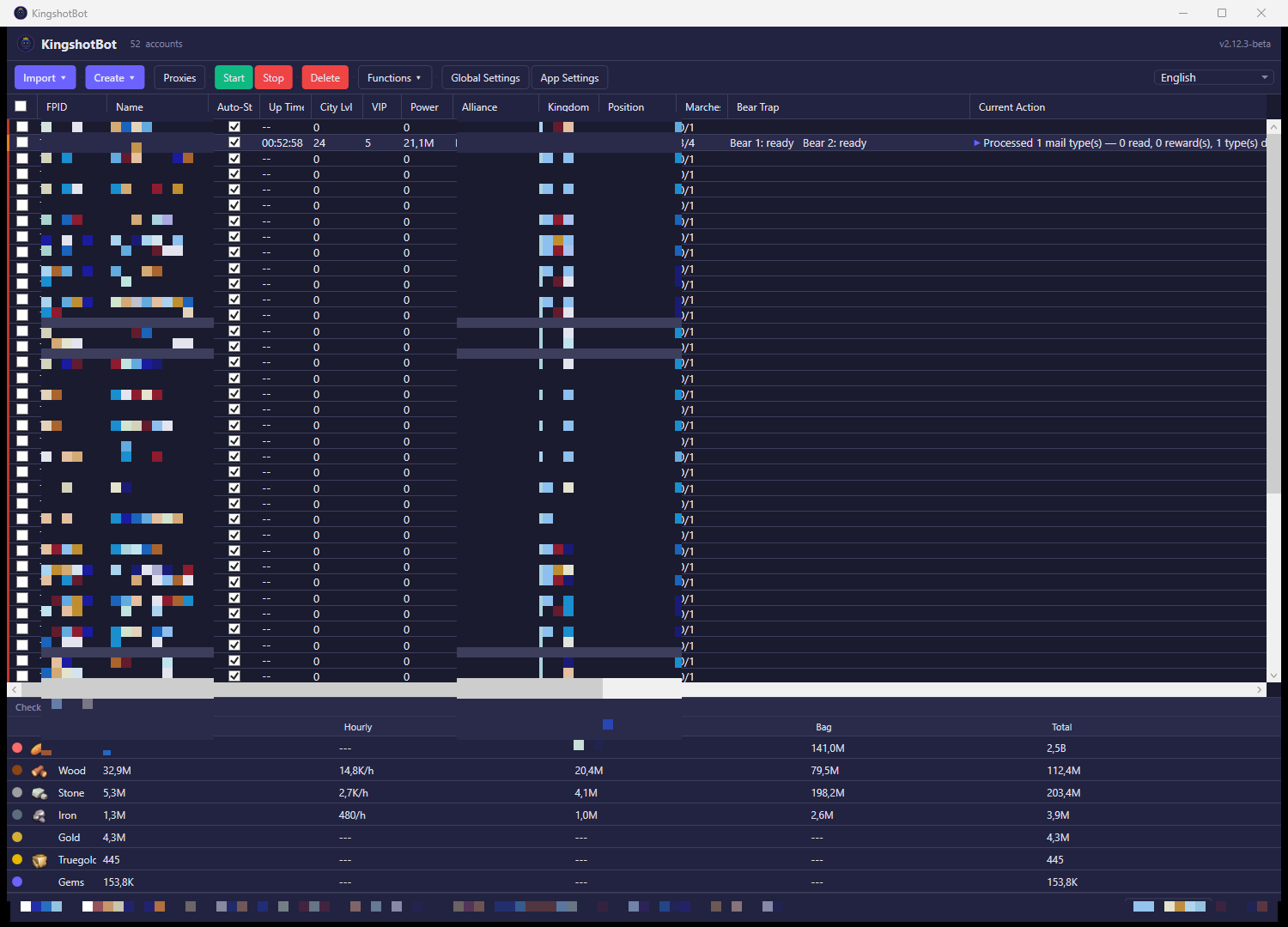
The account IDs, character names, alliances, kingdoms, positions, and the license info in the status bar are blurred in this screenshot on purpose, to protect real player data. Don't try to guess the values underneath — they're redacted for documentation only and carry no meaning here.
What you see
The identity bar at the top shows the app name, version, and the total number of accounts you have linked.
Below the toolbar, a bar shows your free-plan usage if you're on the free tier: a progress bar, the time remaining in the current session window, and when it resets. It disappears once you're on a paid plan.
The main table lists one row per account, with a colored stripe on the left edge that reflects its state: red for disconnected, amber for connected without a protective shield, and green for connected and shielded. Each row can show:
- Checkbox — selects the account for the bulk actions in the toolbar (Start, Stop, Delete, Functions).
- FPID — the account's internal player ID.
- Name — the in-game character name.
- City Lvl — the town center's building level.
- VIP — the account's VIP level.
- Power — the account's total power score.
- Alliance and Alliance Power — the alliance the account belongs to and that alliance's total power.
- Kingdom — the game server/kingdom number.
- Position — the character's coordinates on the kingdom map.
- Building, Research, Spar Science, Training — what's currently queued in each of those systems and the time left, colored to warn you as a queue is about to finish or has gone idle.
- Healing — wounded troops currently being treated in the hospital.
- Gems — the account's premium currency balance.
- Wounded — the number of wounded troops waiting for treatment.
- Marches — active gathering marches out of the account's maximum (e.g. "2/5").
- Bear Trap — the next time window this account is eligible to join a Bear Trap event.
- Mails — mail rewards waiting to be collected.
- Status — a colored dot and label showing whether the account is online, offline, connecting, or reconnecting.
- Current Action — what the bot is doing on that account right now.
- Auto-Start — whether this account reconnects and resumes automatically.
- Up Time — how long the account has been connected in the current session.
Any column can be reordered by dragging its header, resized, or hidden via right-click. Rows that are empty simply mean the account hasn't connected yet — most columns only populate once the bot has logged in and read the account's live game state.
Below the account table, a resource summary totals Food, Wood, Stone, Iron, Gold, Truegold, and Gems across whichever accounts are currently checked (or the selected account if none are checked), showing the current amount, hourly production, storage capacity, backpack overflow, and grand total for each.
The status bar at the bottom shows how many accounts are selected, your account limit, your total account count, your license email, and when your license expires.
What you can do
- Import ▾ — add an existing game account to the bot by signing in with the same method you use in-game (FPID login, Google, or Facebook). See the Import accounts screen.
- Create ▾ — generate a brand-new, anonymous game account directly from the bot, either one at a time or in bulk. See Create accounts.
- Proxies — open the proxy manager to assign network proxies to your accounts. See Proxies.
- Start — connects every checked account that isn't already running and starts its automation loops.
- Stop — disconnects every checked account and halts its automation.
- Delete — permanently removes every checked account from the bot after a confirmation prompt. This deletes the bot's saved configuration for that account; it does not delete or ban the underlying game account, and you can re-import it later.
- Functions ▾ — a menu of actions that apply to the checked or selected account(s): connect/disconnect selected or all accounts, rename the character, relocate the city, recall all active armies, join or leave an alliance, randomize appearance ("Random Leaders"), activate a shield (2h/8h/24h/72h), or redeem a gift code.
- Global Settings — open the settings that can be applied to many accounts at once. See the settings articles for details.
- App Settings — open the client-wide preferences (not tied to any one account). See App Settings.
- Select all (checkbox, status bar) — checks or unchecks every account row at once.
- Minimize to tray (checkbox, status bar) — keeps the bot running in the system tray when you close the window instead of exiting.
- Check for Update — checks whether a newer version of the client is available and offers to install it.
- Double-clicking a row opens that account's detail window (Log, Resources/Map, Army, and the rest of the per-account tabs).
- Right-clicking a row gives you Connect, Disconnect, Account Settings, exporting the account's
com.cg.sdk.xmlfile (a technical export used for advanced device-migration scenarios), and Delete Account.