
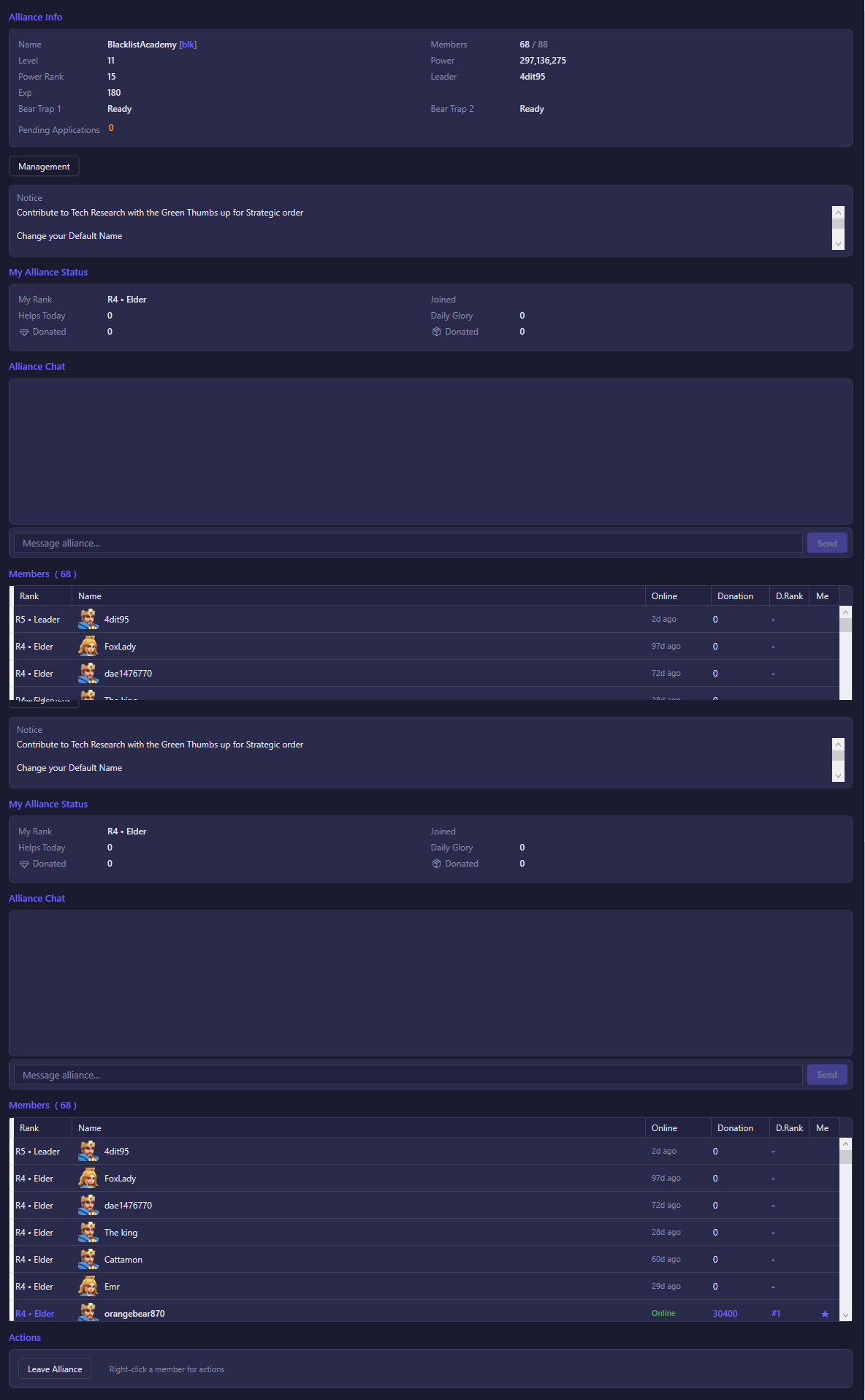
The Guild view shows everything about the alliance your account belongs to — its stats, your personal standing in it, an active alliance vote if there is one, alliance chat, and the full member list — and lets you act on membership: join, leave, promote, demote, kick, or hand off leadership, depending on your rank.
If you're not in an alliance
You'll see two buttons instead of the usual panels:
- Join a Guild — opens a search dialog to find and either join or apply to an existing alliance.
- Create an Alliance — opens a dialog to found your own alliance.
What you see (once in an alliance)
Alliance Info
- Name and tag, Members (current / max), Level, Power, Power Rank (the alliance's power ranking versus other alliances), and Leader.
- Exp — the alliance's accumulated experience.
- Bear Trap 1 / Bear Trap 2 — whether each Bear Trap structure is built, and if so, its current status (ready, on cooldown, etc.); shown in red if not yet built.
- Pending Applications — visible only if you hold R4 or R5 rank, showing how many join requests are waiting for a decision.
- Notice — the alliance's announcement text, if one is set.
My Alliance Status
Your personal standing in the alliance: your rank, the date you joined, how many helps you've given today, your daily glory earned, and your total diamonds and resources donated.
Active Vote (only shown when the alliance has one running)
The vote's title, a countdown to when it ends, the total number of votes cast, and each option with its label; your own choice is marked with a check.
Alliance Chat
A live chat log for the alliance channel, with a message box to send your own messages.
Members
A sortable list of every alliance member: Rank, Name, Online status, Donation (today's donation amount) and D.Rank (donation ranking among members), and a star in the Me column marking your own row.
All of this data reflects your account's live connection to the game — panels stay empty until the bot connects and pulls the alliance state.
What you can do
- Leave Alliance — quits the current alliance, after a confirmation prompt. You can't do this while you're the leader; transfer leadership first.
- Management — opens a separate management window with the deeper R4/R5 alliance-administration tools (only available at R4 rank or above).
- Send (in the chat panel) — posts your typed message to the alliance chat channel.
- Right-click a member row for member-management actions, each only enabled when your rank and the target's rank allow it:
- Promote / Demote — move the selected member's rank up or down by one step (requires R4+ and the target to be a lower rank than you).
- Kick — removes the selected member from the alliance, after a confirmation prompt (requires R4+; blocked if the member is currently in a Supremacy War battlefield).
- Transfer Leadership — hands your leadership over to the selected member; only the current leader can do this, and it's permanent until reversed.
- Seize Leadership — takes over as leader from a leader who has been offline long enough to be eligible for replacement; costs diamonds and requires confirmation.
Joining, applying, and founding an alliance all route through their own dialogs opened from this view. The Active Vote panel is display-only here — it shows the alliance's current vote and your own choice if one is running, but casting or changing a vote is done in-game, not from this view.