
The Proxies window, opened from the "Proxies" button on the main window toolbar, lets you build a pool of proxies and assign them to your linked game accounts. Running several accounts through the same IP address can look suspicious to the game, so most players route each account (or a small group of them) through its own proxy.
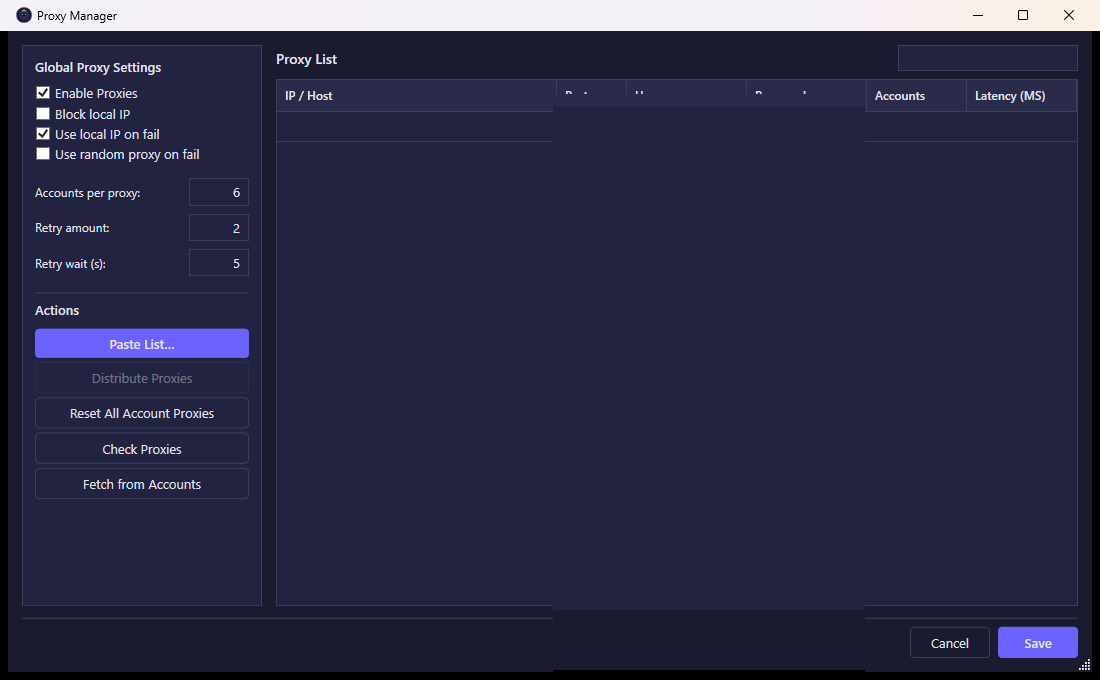
What you see
The window is split into two parts.
On the right, a table lists every proxy in your pool, one row per proxy:
- IP / Host and Port — the address of the proxy server.
- Username and Password — optional credentials, only needed if the proxy requires authentication.
- Accounts — how many of your accounts are currently using this proxy, shown as "used / cap" (for example "3 / 5"). This turns red when a proxy has more accounts assigned to it than the configured cap.
- Latency (ms) — the response time measured the last time you checked this proxy, together with a colored dot: green for online, orange for slow, red for offline, and gray when it hasn't been checked yet.
A search box above the table lets you filter the list by host.
On the left, the Global Proxy Settings panel controls how proxies are used across all accounts:
- Enable Proxies — turns proxy usage on or off entirely.
- Block local IP — prevents accounts from connecting directly over your own internet connection when they have no proxy assigned. Turning this on immediately disconnects any currently running account that isn't routed through a proxy.
- Use local IP on fail — falls back to your own connection if an account's assigned proxy stops working.
- Use random proxy on fail — instead of falling back to your local IP, switches the account to another proxy from the pool if its assigned one fails.
- Accounts per proxy — the maximum number of accounts that should share a single proxy. This is the cap shown in the Accounts column and used when distributing proxies automatically.
- Retry amount and Retry wait (s) — how many times to retry a failed proxy connection, and how long to wait between retries.
What you can do
- Paste List… opens a small dialog where you can paste many proxies at once, one per line. Accepted formats are
user:pass@host:port,host:port:user:pass, orhost:portfor proxies without authentication, optionally prefixed with a scheme such assocks5://,socks4://,http://, orhttps://. Lines starting with#are ignored. Duplicate entries already in your pool are skipped, and the dialog tells you how many were added. - Distribute Proxies automatically assigns every account to a proxy from your pool, spreading accounts evenly and respecting the "Accounts per proxy" cap. It skips any account already at the cap for a given proxy and moves on to the next available one; proxies you've marked over their cap are simply filled up to the limit before moving to the next proxy.
- Reset All Account Proxies removes the proxy assignment from every account, so they all fall back to whatever the global settings dictate (local IP, if allowed).
- Check Proxies tests every proxy in your list for connectivity and measures its response time, updating the status dot and latency for each row. This can take a moment while all proxies are being checked, and the button is disabled until it finishes.
- Fetch from Accounts scans your accounts for proxies that are already assigned to them but missing from the central pool, and adds those to the list. This is useful if accounts were set up with a proxy directly rather than through this window.
- You can also edit a proxy's host, port, username, or password directly in the table, add a new row at the bottom of the grid, or right-click a row and choose Delete Row to remove it.
- Save applies your changes and closes the window; Cancel discards them.