
The Log view is the account's diagnostic feed. Every action the bot takes, every game event it reacts to, and every network hiccup it encounters is recorded here in real time. It's the first place to look when you want to know exactly what the bot is doing, or to figure out why it did (or didn't) do something.
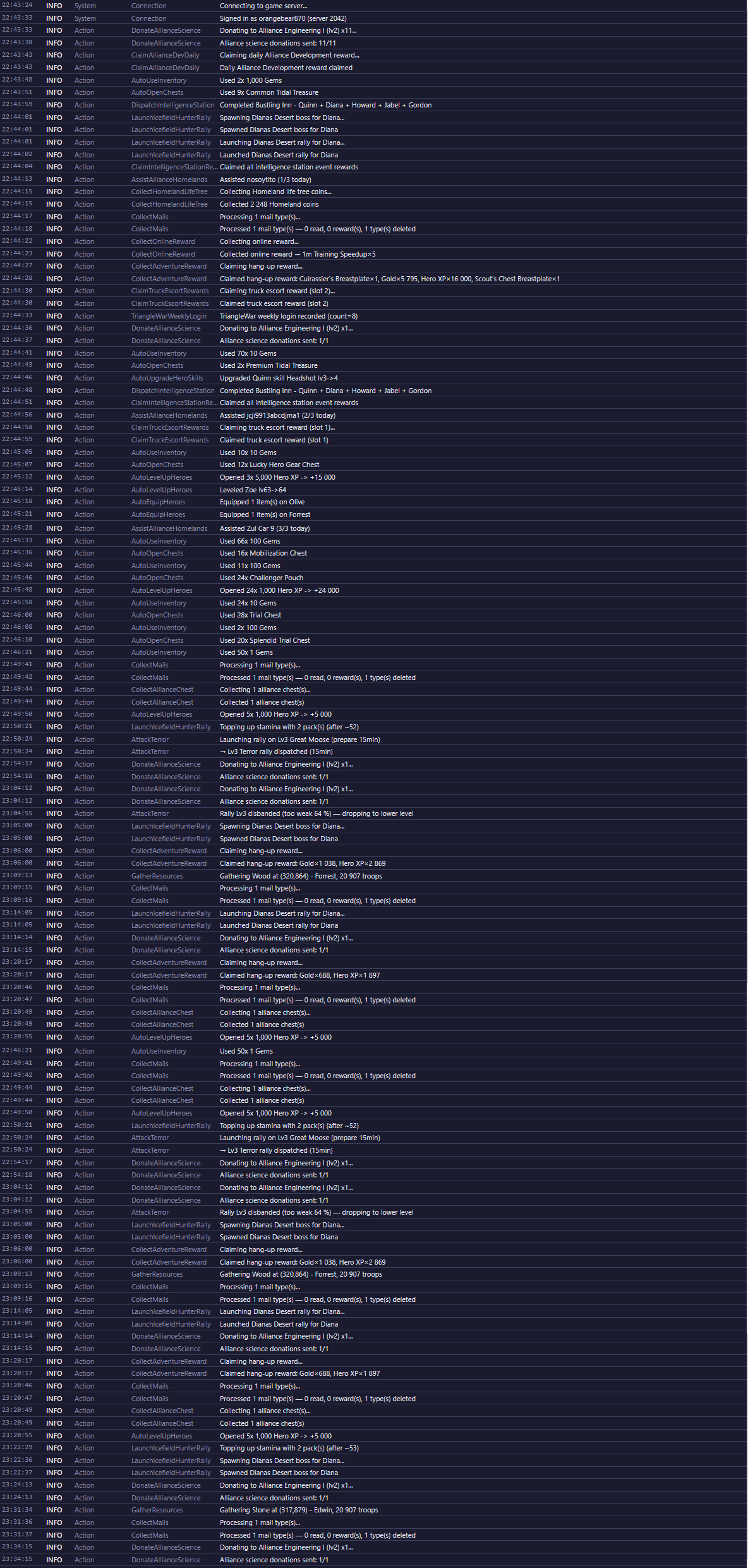
What you see
Each row is one log entry with five pieces of information:
- Time — when the entry was recorded, in your local time.
- Level — how significant the entry is: Info for normal activity, Warn for something worth noticing (like high server latency), Error for something that failed, and Verbose for low-level technical detail (like raw network messages) that's hidden by default.
- Category — what part of the bot produced the entry: Action (something the bot decided to do, like collecting a reward), GameEvent (something the game server reported, like a completed training order), System (bot-internal state, like a reconnect), or Network (the connection to the game server).
- Source — the specific bot component or handler that logged the entry.
- Message — the human-readable description of what happened.
Entries with a Warning or Error level are highlighted so they stand out in the feed. The feed keeps the most recent entries and automatically discards the oldest ones once the list gets very long, so it never grows without bound.
This view starts empty until the account connects; once connected, it fills up continuously as the bot runs, and keeps accumulating for as long as the client stays open.
What you can do
- Filter by level — use the Info, Warn, Error, and Verbose checkboxes to show or hide each level. Verbose is off by default because it's very high-volume technical detail.
- Filter by category — the category dropdown narrows the feed to just Actions, Game Events, System messages, or Network traffic.
- Search — type in the search box to only show entries whose message or source contains that text.
- Stick to bottom — when checked, the view automatically scrolls to the newest entry as it arrives. Uncheck it if you want to read older entries without the feed jumping while new ones come in.
- Clear — empties the currently displayed log history for this session. It doesn't affect what the bot does, only what's shown.
- Export Logs — saves a diagnostic file to disk containing the account's log and other internal state. This is the file to send when asking for support on Discord, since it captures far more detail than what's visible on screen.
- Copy — select one or more rows and press Ctrl+C, or right-click and choose Copy, to copy the selected entries as plain text (handy for pasting into a support message).